
Complete Guide to Meta Business Portfolio Setup (2026)
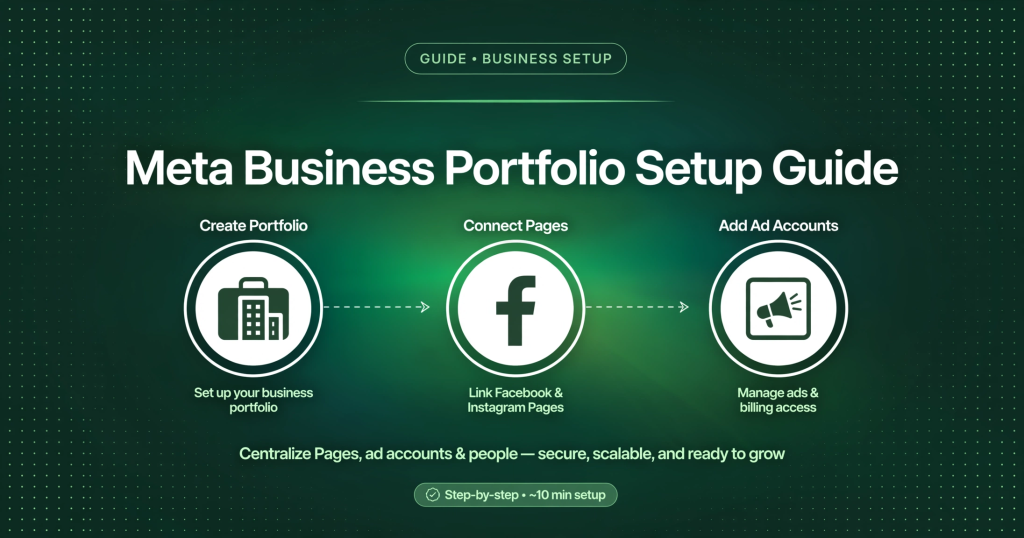
If you’re running ads or managing Pages on Meta, everything starts with one thing: your Meta Business Portfolio (previously called Business Manager). Set it up wrong and you’ll fight permission errors, ad account locks, and verification headaches for months. Set it up right — once — and everything else gets easier.
This guide walks you through the complete setup, step by step.
What Is a Meta Business Portfolio?
Think of it as the control room for your business on Meta. Instead of running ads from a personal Facebook profile, the portfolio lets you organize Pages, ad accounts, pixels, Instagram accounts, and team members under one business entity — with proper roles and permissions for each person.
Meta renamed Business Manager to Business Portfolio, but the concept is the same. If you see either term in Meta’s docs, they refer to the same place: business.facebook.com → Business Settings.
Before You Start: What You Need
- A personal Facebook account with two-factor authentication enabled (this becomes your login — Meta requires it).
- Your legal business name, address, and phone number.
- A business email address (not a free personal one if you can avoid it).
- Your website URL.
Step 1: Create the Portfolio
- Go to business.facebook.com and click Create Account.
- Enter your business name — use the legal name, exactly as it appears on official documents. This matters later for verification.
- Add your name and business email, then submit.
- Confirm the email Meta sends you.
That’s it — the portfolio exists. Now the important part: adding people and assets correctly.
Step 2: Add People (With the Right Roles)
- Open Business Settings → Users → People and click Add.
- Enter the person’s work email.
- Choose their access level carefully:
- Full control (admin): can do everything, including removing other admins. Give this to as few people as possible — ideally two trusted owners, so you’re never locked out if one leaves.
- Partial access: assign only the specific assets (ad account, Page) the person needs.
- They’ll get an email invitation to accept.
Rule of thumb: always keep at least two admins. A portfolio with a single admin who loses access is one of the hardest situations to recover from.
Step 3: Add Your Assets
Go to Business Settings → Accounts. Add each asset type:
- Pages: claim your Facebook Page into the portfolio (you’ll need Page admin rights).
- Ad accounts: create a new one inside the portfolio, or request access to an existing one.
- Pixels / datasets: create or claim them so conversion tracking belongs to the business, not an individual.
- Instagram accounts: connect the business Instagram for ads and insights.
After adding each asset, assign people to it with only the permissions they need. An editor who only designs creatives doesn’t need billing access.
Step 4: Complete Business Verification
Verification unlocks higher trust and removes limits. In Business Settings → Security Center (or Business Info), start verification and prepare:
- A business document (registration, tax document, or utility bill) showing your legal name and address.
- A phone number or email on an official domain.
- Details that exactly match what you entered at setup — mismatches are the #1 reason verification stalls.
Common Setup Mistakes to Avoid
- One admin only. Add a second trusted admin on day one.
- Personal assets mixed in. Keep business Pages and ad accounts inside the portfolio — never run business ads from a personal ad account.
- Wrong business name. Nicknames and abbreviations cause verification failures later.
- Everyone gets full control. Use partial, asset-level access for team members and freelancers.
- Skipping verification. Do it early, before you scale ad spend — not after a restriction forces you to.
FAQ
Is Business Portfolio the same as Business Manager?
Yes — Meta renamed Business Manager to Business Portfolio. Same tool, new name.
Can one person own multiple portfolios?
Meta allows it, but keep each legal business in its own portfolio. Don’t reuse the same assets across many portfolios.
How long does verification take?
Usually a few days, sometimes longer during busy periods. Submit clean, matching documents once rather than re-submitting repeatedly.
Need Help Setting Up?
Setting up a portfolio the right way takes under an hour — fixing a wrong one can take weeks. If you’d like it done correctly from day one, message us on WhatsApp and we’ll help.