
How to Create a Meta Business Portfolio (2026)
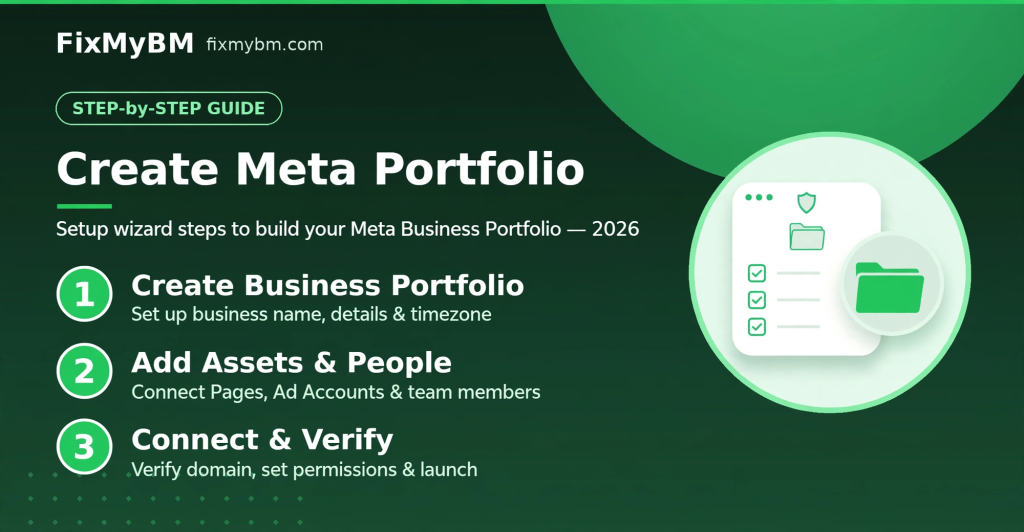
Need a Meta Business Portfolio (the current name for Business Manager) up and running? This guide walks through creating one from scratch in 2026 — the actual creation flow, what information you’ll need, and how to fix creation errors.
For the full configuration deep-dive after creation, see our complete Portfolio setup guide.
Business Portfolio vs Business Manager: Terminology
Meta renamed Business Manager → Business Portfolio. Same tool, new name. You’ll still see “Business Manager” in older documentation and some interface corners — they refer to the same thing.
Before You Create: Requirements
- A Facebook profile — real, established, in good standing (new or restricted profiles often can’t create Portfolios)
- Legal business name — as it appears on official documents
- Business email you control (not a temporary address)
- Business address and phone — needed for later verification
Step 1: Start the Creation Flow
- Go to business.facebook.com
- Click Create Account
- Log in with your Facebook profile if prompted
Step 2: Enter Business Information
Fill in the form carefully:
- Business name: Use the legal name — this matters for future verification. Avoid special characters, ALL CAPS, or misleading terms.
- Your name: The person creating it (you)
- Business email: Where Meta sends the confirmation
Double-check spelling — some fields are harder to change later.
Step 3: Confirm via Email
- Check your inbox for Meta’s confirmation email
- Click the confirmation link to activate the Portfolio
- If it doesn’t arrive within 15 minutes, check spam and resend from the creation page
Step 4: Immediate Post-Creation Setup
Creation takes minutes — but don’t stop there. Do these right away:
- Add a second admin: Business Settings → People → Add. Never be the sole admin — if you lose access, the Portfolio is stranded.
- Claim your assets: Add your Facebook Page, Instagram account, and create or claim an ad account.
- Enable 2FA: On every admin’s Facebook profile. This is non-negotiable.
- Set up Business Info: Fill in address, phone, website, and tax info under Business Settings → Business Info.
Adding People and Assigning Permissions
Roles
- Admin (full control): Manage everything including people and billing. Limit to 2-3 trusted people.
- Employee (partial access): Access only to specifically assigned assets.
How to Add Someone
- Business Settings → People → Add
- Enter their work email
- Choose Admin or Employee access
- Assign specific assets (ad accounts, Pages, pixels) — don’t grant blanket access
- They accept the email invite
Connecting Your First Assets
- Facebook Page: Business Settings → Accounts → Pages → Add (claim, request access, or create new)
- Ad account: Accounts → Ad Accounts → Add (create new, claim existing, or request access)
- Instagram: Accounts → Instagram Accounts → Add
- Pixel: Data Sources → Pixels → Add
- Domain: Brand Safety → Domains → Add (needed for conversion tracking)
Securing Your New Portfolio
- 2FA on all admins (repeat because it matters)
- Review the People list monthly
- Remove ex-employees and old agencies immediately
- Use work emails, never personal ones, for business access
- Enable login alerts on admin profiles
Creation Errors and Fixes
“You can’t create a Business Portfolio right now”
Your Facebook profile is too new, has restrictions, or has hit creation limits. Use an established profile in good standing.
Confirmation Email Never Arrives
Check spam. Wait 15 minutes. Corporate email filters frequently block Meta — try a Gmail address as a test.
Business Name Rejected
Remove special characters, excessive caps, or generic terms like “Best” or “Official” unless they’re part of your legal name.
Stuck in a Loop / Page Refreshes
Clear browser cache and cookies, try incognito mode, or switch browsers. Persistent loops usually indicate a profile-level limitation.
“Limit Reached” on Creation
Each profile can only create a small number of Portfolios. If you’ve hit the limit, use an existing one or have another admin create it.
What’s Next After Creation?
Creating is the easy part. Proper configuration — verification, asset organization, team structure — is what makes a Portfolio actually useful. Continue with:
- Complete Portfolio Setup Guide — full configuration
- BM Verification Guide — get verified
- Security Checklist — lock it down
FAQ
Is it free to create?
Yes — creating a Business Portfolio costs nothing.
Can I create multiple Portfolios?
Meta limits this per profile. Most businesses need just one well-organized Portfolio.
Do I need a business license to create one?
No — but you’ll need official documents later for business verification.
Based on Meta’s official Business Help Center. Interfaces change over time; some labels may differ.