
How to Enable 2FA on Facebook (2026 Step-by-Step Guide)
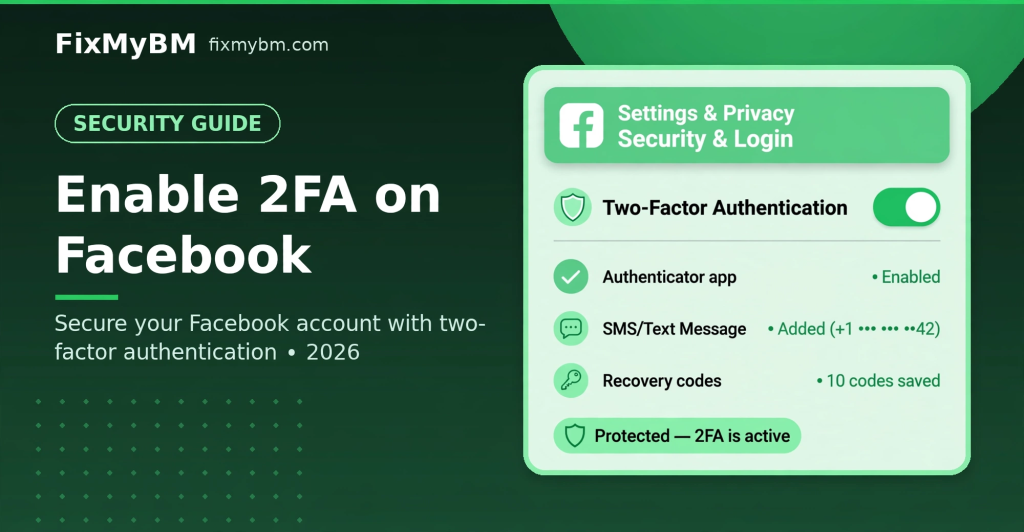
Facebook accounts are prime targets for hackers — and a password alone is not enough. Enabling two-factor authentication (2FA) takes about two minutes and blocks the vast majority of takeover attempts. Here is exactly how to do it in 2026.
Enable 2FA on Facebook: Step by Step
- Click your profile picture (top right) → Settings & privacy → Settings.
- Go to Accounts Center → Password and security.
- Click Two-factor authentication and select your Facebook profile.
- Choose “Authentication app” (recommended over SMS).
- Facebook shows a QR code and a secret key. Open your authenticator app (Google Authenticator, Authy, or our free online 2FA generator) and scan the QR or paste the key.
- Enter the 6-digit code shown by the authenticator to confirm. Done!
Why Use an Authentication App Instead of SMS?
Facebook offers both SMS codes and authenticator-app codes. The app is safer: SMS can be intercepted through SIM-swapping, while authenticator codes are generated on your device and never travel over the network. If you only set up one method, make it the authentication app.
Save Your Recovery Codes
After enabling 2FA, Facebook gives you recovery codes. Save them somewhere safe (a password manager or printed copy). If you lose your phone, these codes are the only way back into your account.
What If You Lose Access?
- Have recovery codes? Use one to log in, then set up 2FA fresh.
- No codes, no authenticator? You will need to go through Facebook’s identity verification — a slow process with no guarantee. This is why backup codes matter.
Do This for Instagram Too
Since Instagram lives in the same Accounts Center, enable 2FA there as well — attackers frequently target Instagram accounts for resale, and the setup takes another minute.
Need a Code Right Now?
No authenticator app handy? Use our free 2FA code generator — paste the secret key Facebook gave you and get your 6-digit code instantly, right in the browser.